Designing Websites with Design and Programming Agents
Chapter Introduction
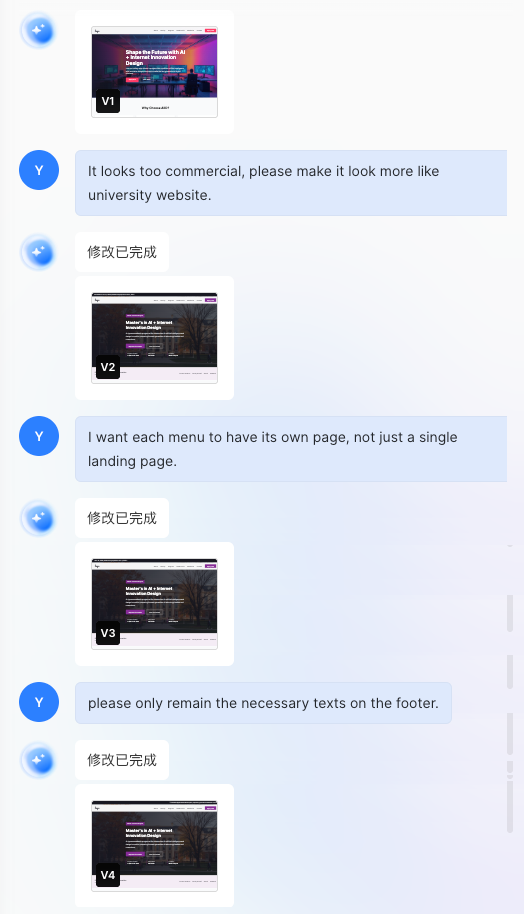
This chapter demonstrates how design and development can work together perfectly through AI. You will play the role of a product manager, directing the "Design Agent" to complete logo design, color schemes, and page layouts, then collaborate with the "Programming Agent" to transform visual mockups into runnable code. Experience full-chain AI-powered development from creative conception to website launch, making one person equivalent to an entire team.
1. Getting Started Guide
1. Tutorial Introduction
Let's use AI Design Agents and Coding Agents to build a complete website from scratch.
- Design Agent: Responsible for creating logos, web page layouts, color schemes, and other visual elements
- Coding Agent: Writes actual code (HTML/CSS/JS, etc.) based on the requirements and layouts you provide in prompts to build a runnable website
2. Design Agents vs. Coding Agents
- Design Agent: AI that generates images, page mockups, or design styles based on the prompts you provide.
- Mastergo
- Lovart
- Figma MCP
- Coding Agent: AI that writes actual code (HTML/CSS/JS, etc.) based on the functionality and layout you request in prompts.
- Z.AI
- Trae
- Cursor
- Lovable
2. Using Design Agent to Create Logo
1. Key Elements to Consider When Designing a Logo
The logo is one of the key elements that determine your website's first impression. To get satisfactory results from AI Design Agents, you need to clearly describe the type of logo you want in your prompt.
- Brand Name / Text
- Text that must appear in the logo (e.g., website title, brand name, etc.).
- Style (Mood / Atmosphere)
- The overall feeling or atmosphere the logo wants to convey.
- Examples: minimalist, cute, simple, modern, vintage, futuristic, etc.
- Color Scheme (Optional)
- It's best if the logo's colors match the overall tone of the entire website.
- You can specify specific hex color codes, or general color tones (cool, warm, etc.).
- Examples:
#171721(black),#FF7130(orange).
- Form (Shape / Structure)
- Clearly state if the logo needs a specific shape or composition.
- Examples: text inside a circle, icon + text combination, icon-focused logo, etc.
- Icon / Symbol Elements (Optional)
- Graphics or symbols you want to appear in the logo.
- Examples: book icon, lightning symbol, AI-related graphics, abstract geometric shapes, etc.
2. Writing Logo Design Prompts
Example Prompts
"Please design a minimalist-style logo for me, with the brand name 'My First Website'.
Use black (#171721) and orange (#FF7130), and place the text inside a circle."
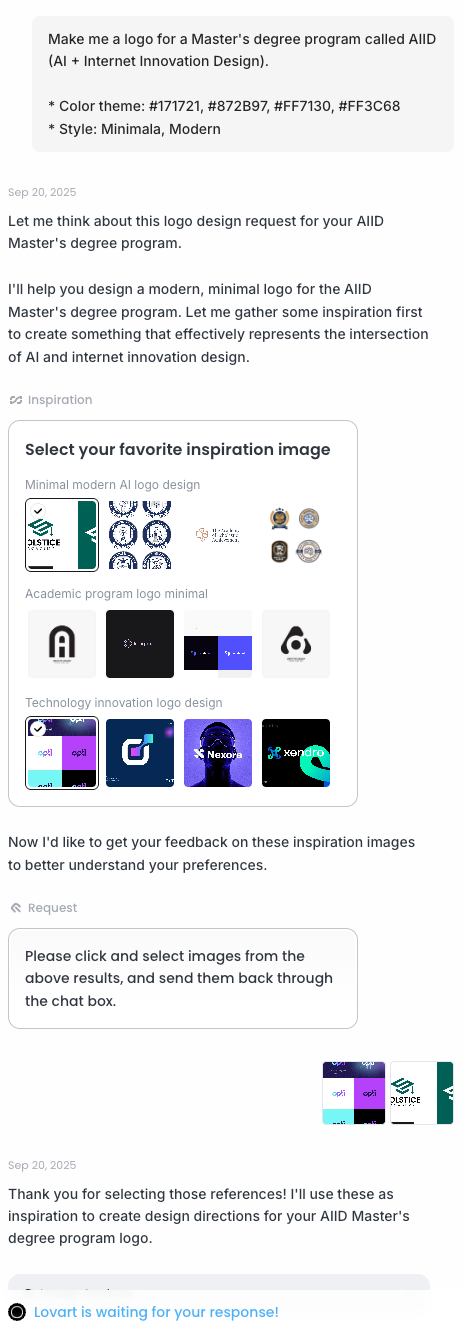
"Design a logo with the brand name 'AIID'.
The overall style should be futuristic, clean, and simple, with blue and white as the main colors.
Combine abstract graphics symbolizing AI with the text, and export as a PNG with a transparent background."3. Requesting Design from Agent
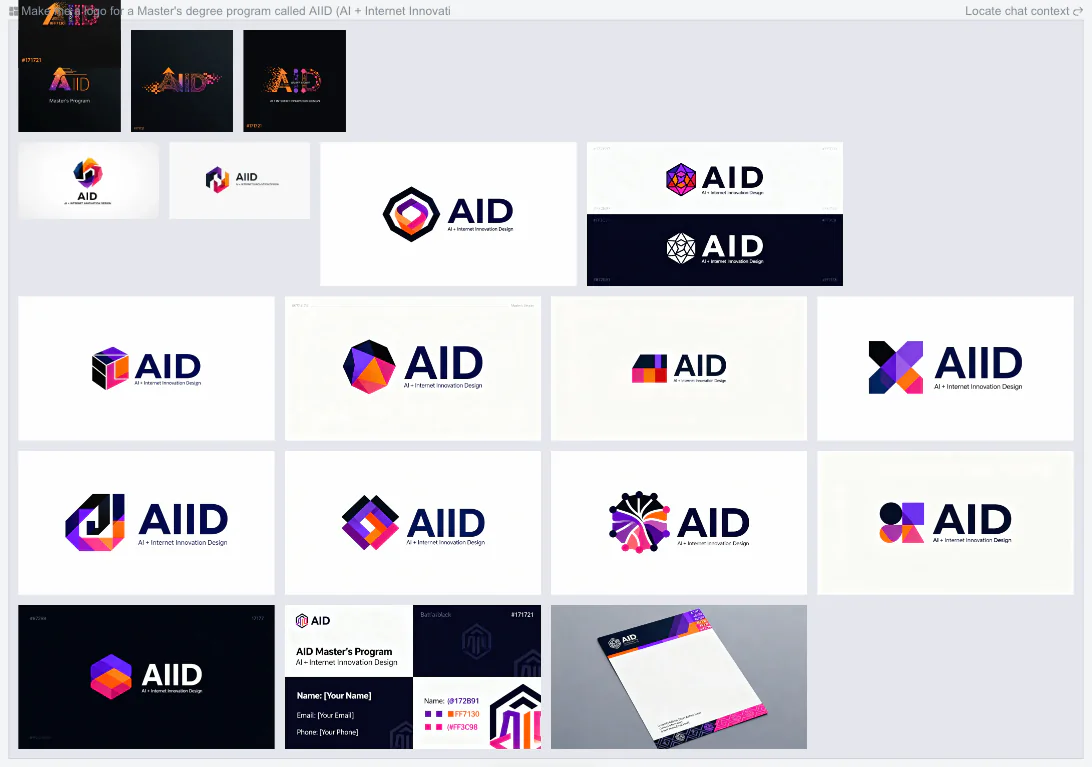
- Input the above prompts → Compare multiple designs generated by the Agent.
4. Finalizing the Logo
- Choose your favorite version from the drafts and download it.
3. Planning Your Website Structure
1. Understanding Basic Sections
Before actually starting to build the website, it's very important to plan which menus (sections) to include. The menu design depends on what you want visitors to see and what actions you want them to take. Generally, websites are usually composed of basic sections like Home / About / Contact.
2. Draw Your Own Structural Sketch (Optional)
You can first write out a simple menu structure based on the website's goals.
4. Using Design Agent to Create Page Layout
1. Page Layout Design Prompts
Example Prompts
"Please create a website layout with the following requirements:
- Color scheme: black (#171721) background, white text, orange (#FF7130) accents
- Sections: Home, About, Services, Contact
- Home: Hero section with large headline, CTA button, and service highlights
- About: Company introduction with team member photos
- Services: Grid layout showing services offered
- Contact: Simple contact form with email and social media links
- Style: Modern, minimalist, with smooth scroll animations"
"Design a landing page for an AI tools collection website.
- Primary colors: purple (#7C3AED) and dark gray (#1F2937)
- Hero: Centered title 'AI Tools Hub', subtitle, and 'Explore Now' button
- Features: 3-column grid showing tool categories
- Each card should have an icon, title, and brief description
- Footer: Copyright and social links
- Include responsive design considerations"2. Requesting Layout Design from Agent
- Input your requirements → Agent generates layout mockups → Refine based on feedback
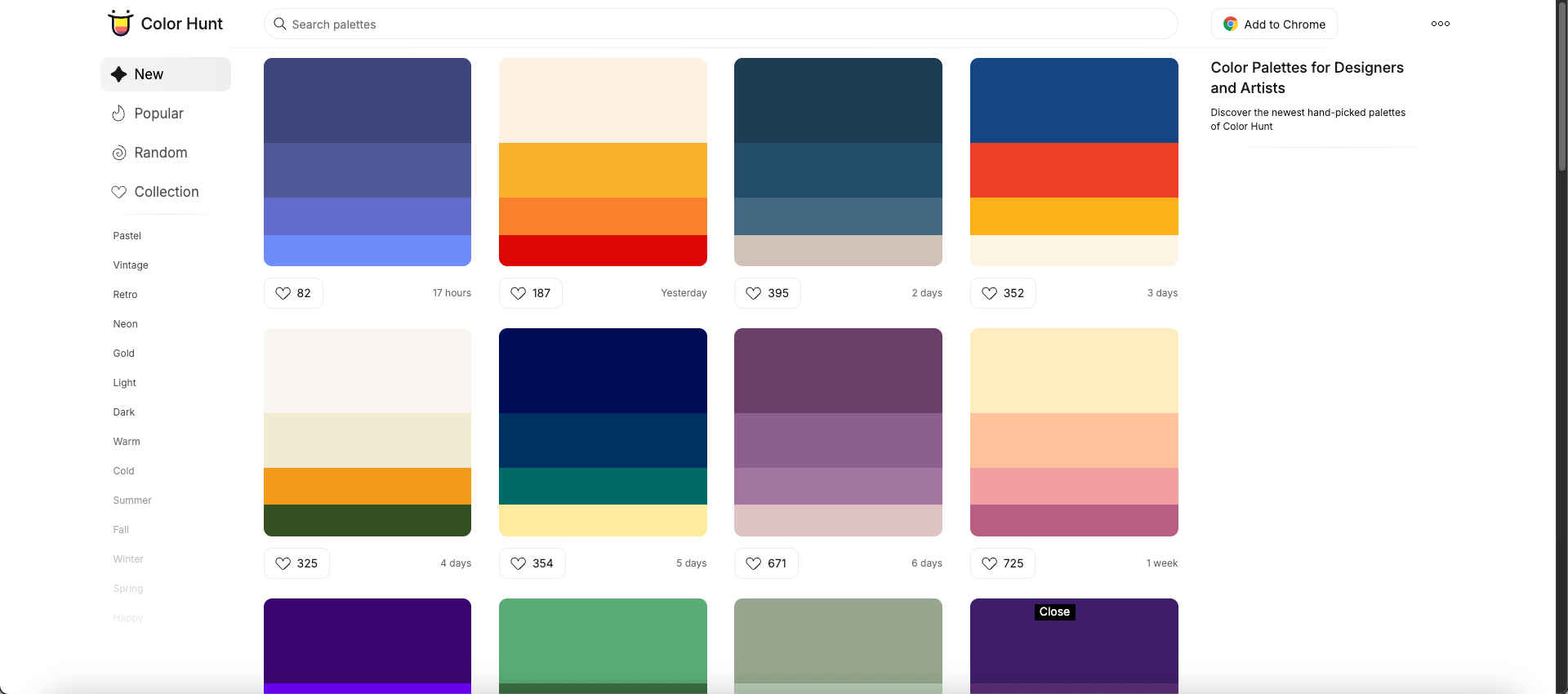
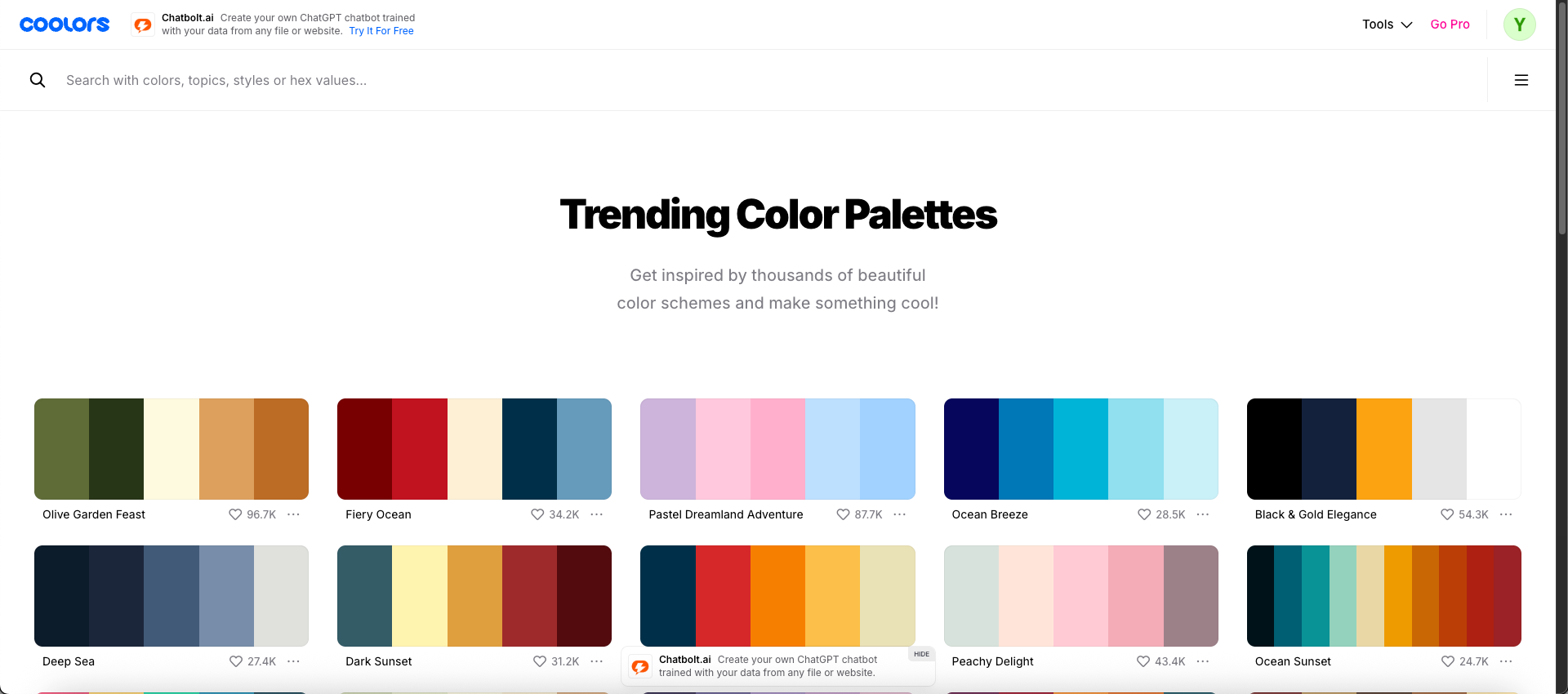
3. Creating Color Palette
Example Prompt
"Create a color palette for a tech blog website.
- Primary: Deep blue
- Accent: Vibrant orange
- Background: Light gray for readability
- Text: Dark gray for contrast
Please provide hex codes for each color and explain their usage."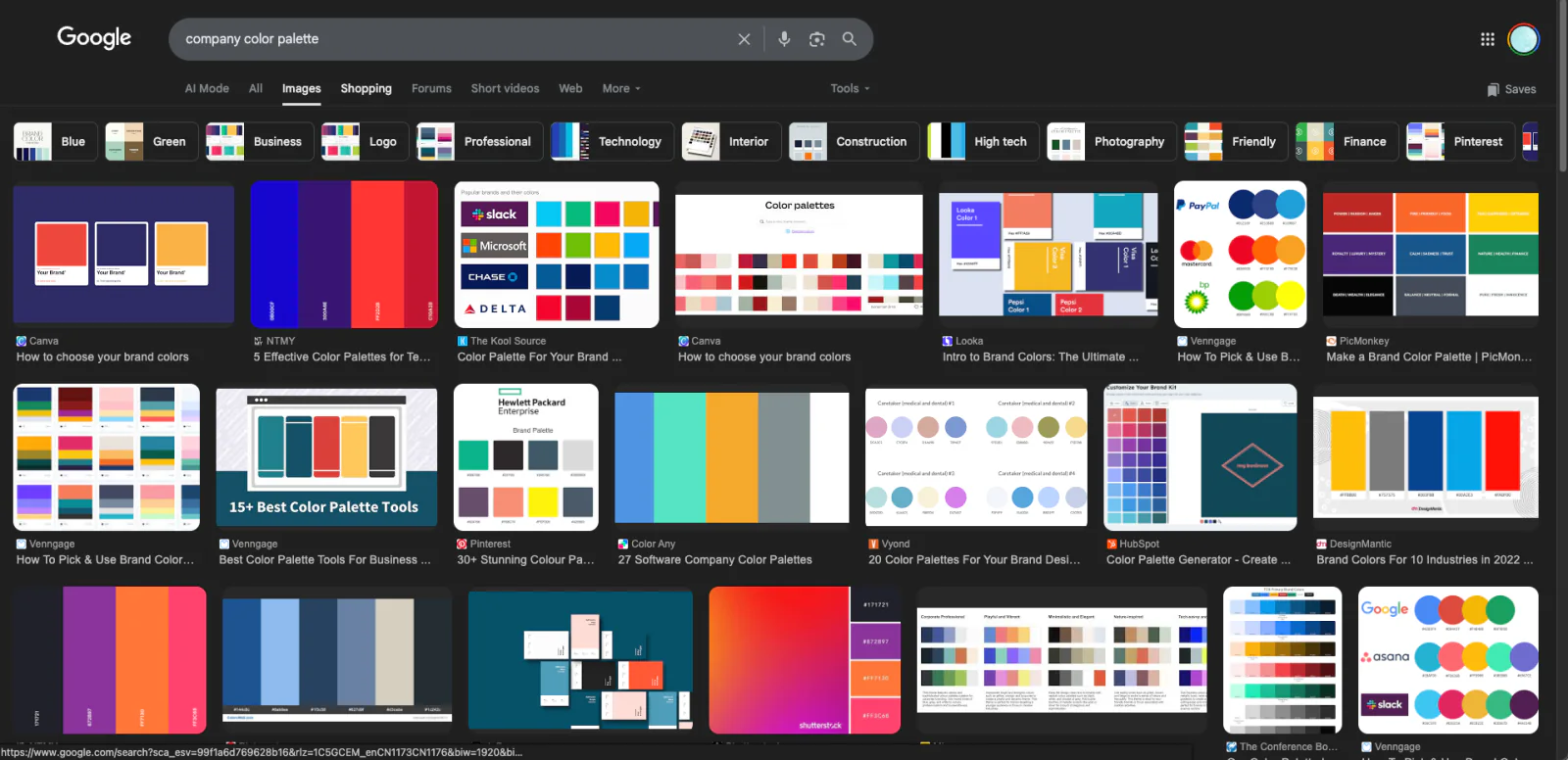
4. Selecting Typography
Example Prompt
"Recommend font pairings for a modern tech website.
- Heading font: Something bold and distinctive
- Body font: Clean and readable
Please suggest specific Google Fonts."
5. Integrating Design with Coding Agent
1. Preparing Design Specs
Before handing off to the Coding Agent, prepare:
- Logo file (PNG with transparent background)
- Color codes (Hex values for primary, secondary, accent colors)
- Typography (Font names, sizes, weights)
- Layout description (Section structure, spacing, responsive behavior)
2. Writing Coding Prompts
Example Prompt
"Build a responsive website based on the following specifications:

**Brand**
- Logo: [attach logo file]
- Name: My First Website

**Colors**
- Primary Background: #171721 (dark)
- Text: #FFFFFF (white)
- Accent: #FF7130 (orange)

**Sections**
1. Home - Hero with headline 'Welcome to My First Website', subtitle, and 'Get Started' button
2. About - Brief company introduction (2-3 sentences)
3. Services - 3 service cards in a row
4. Contact - Simple form with name, email, message fields

**Requirements**
- Use semantic HTML5
- Include CSS animations for smooth transitions
- Mobile responsive (stack sections on mobile)
- Use CSS flexbox/grid for layout
- Add subtle hover effects on buttons and cards

Please create index.html with embedded CSS and basic JavaScript for mobile menu."
3. Iterating with Coding Agent
- Initial code → Test and review → Provide feedback → Refine until satisfied

6. Practical Example: Building a Personal Portfolio
1. Project Overview
Let's build a personal portfolio website with:
- Clean, modern design
- About section with photo
- Skills showcase
- Project portfolio grid
- Contact form
2. Step-by-Step Implementation
Step 1: Design Phase
Logo Design Prompt
"Design a minimalist logo for a personal portfolio.
Brand name: 'John Doe'
Style: Clean, professional, modern
Colors: Dark blue (#1E3A8A) and white
Format: PNG with transparent background"
Layout Design Prompt
"Create a personal portfolio website layout:
- Single page with smooth scroll
- Dark theme with blue accents
- Sections: Hero (with photo placeholder), About, Skills, Projects, Contact
- Modern, professional aesthetic
- Include responsive mobile view"
Step 2: Development Phase
Coding Prompt
"Create a personal portfolio website with these specs:

**Visual Design**
- Dark theme: #0F172A background, #F8FAFC text
- Accent color: #3B82F6 (blue)
- Font: Inter from Google Fonts

**Sections**
1. Hero: Name, title, brief tagline, 'View Work' CTA button
2. About: Photo placeholder (200x200 circle), 2-paragraph bio
3. Skills: Grid of skill tags (HTML, CSS, JavaScript, React, Node.js)
4. Projects: 3-column grid with project cards (image, title, description, link)
5. Contact: Form with name, email, message fields and submit button

**Technical**
- Responsive: Single column on mobile, 3 columns for projects
- Smooth scroll between sections
- Hover effects on buttons and project cards
- Form validation with JavaScript

Output as a single index.html file with embedded CSS and JS."
Step 3: Refinement
Based on test results, iterate:
- "Add more projects to the portfolio"
- "Change accent color to green (#10B981)"
- "Add a navigation bar that stays fixed at top"
7. Best Practices
1. Design-Coding Handoff Tips
- Be Specific: Provide exact colors, dimensions, and spacing
- Use References: Share example websites you like
- Iterate Incrementally: Start simple, add complexity later
- Test Responsiveness: Check how it looks on different screen sizes
2. Prompt Optimization
| Tip | Do | Don't |
|---|---|---|
| Clarity | "Use #FF5733 for buttons" | "Make it pop" |
| Context | "For a SaaS landing page..." | Just "make a website" |
| Constraints | "Max 3 colors, no animations" | "Make it beautiful" |
| Feedback | "The hero section is too tall, reduce padding" | "Fix it" |
3. Common Workflow Patterns
- Design-First: Design complete → Code implementation
- Parallel: Design and code simultaneously with iteration
- Iterative: Quick prototype → Refine design → Enhance code
8. Summary
This chapter covered:
- Design Agents: How to use AI for logo and layout design
- Coding Agents: How to convert designs into functional code
- Integration Workflow: Complete process from design to deployment
- Practical Examples: Step-by-step portfolio website creation
- Best Practices: Tips for effective AI collaboration
The combination of Design Agents and Coding Agents represents a powerful workflow that can significantly accelerate website development. By clearly communicating your vision and iterating based on feedback, you can create professional websites efficiently.
Key Takeaways:
- Start with clear requirements and design specs
- Use specific, actionable prompts
- Iterate based on testing and feedback
- Leverage both design and coding AI tools together
Next Steps:
- Try creating your own website using this workflow
- Experiment with different Design Agents (Mastergo, Figma)
- Explore advanced Coding Agent features (Cursor, Lovable)
- Build a complete project portfolio using AI assistance
Happy building! 🚀